Beginning Docker
I have been meaning to really learn containers for a while, but have not had the time. I have dabbled with them in my OS theory class. Since I was on a Mac, I used an Ubuntu container to do all of my C development because macOS has some Clang shenanigans, and I hate fighting compilers.
I will be following the tutorial here: https://docker-curriculum.com
Setting Up Docker Env
I have an old MacBook with an M-series chip. I just installed Asahi Linux without a GUI. I figured Fedora on an ARM machine that I can SSH into to learn Docker sounds pretty easy, right?
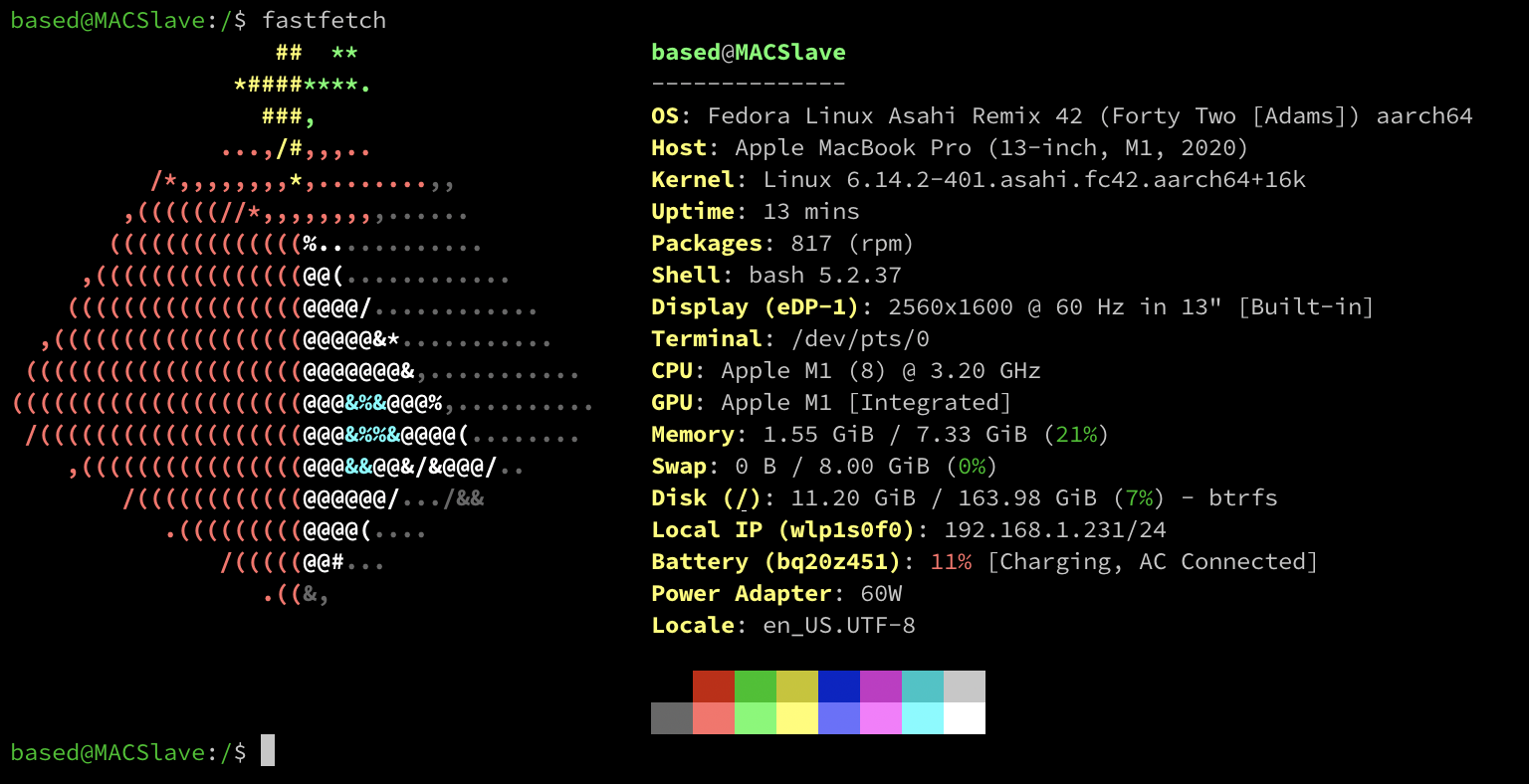
System Info
We have:
- 8 GB of RAM
- Btrfs
- An internet connection
What could go wrong?
Installing Docker
Do we have Docker?
sudo dnf install docker -y
sudo systemctl start docker.service
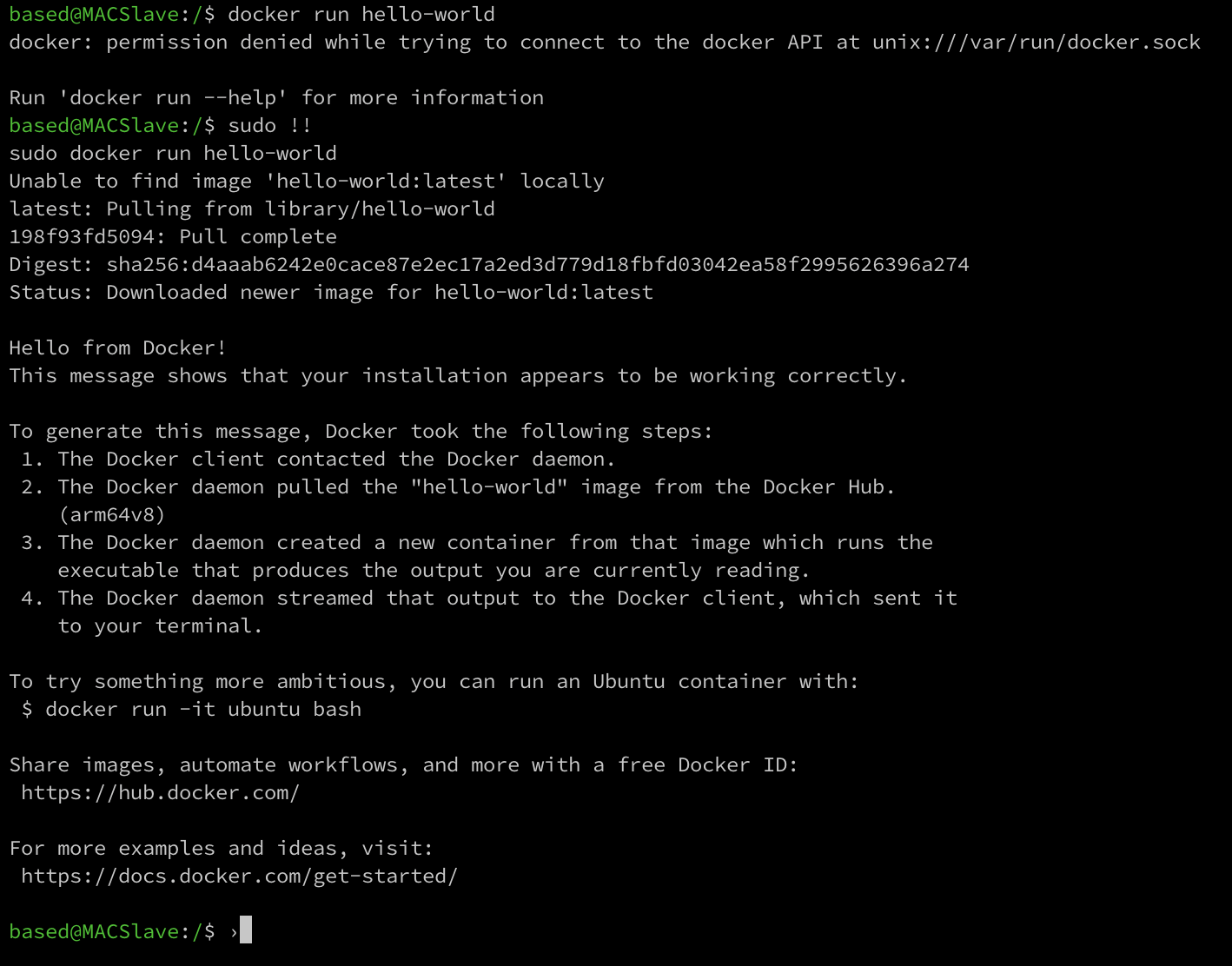
Testing Docker Install
This command should show something cool from Docker:
docker run hello-world
You should see output similar to this:
Pulling BusyBox
- Pull container:
docker pull busybox
- List images:
docker images
- Run container:
docker run busybox
I can see the currently running containers and exited containers:
docker ps -a

Stopping and Starting Containers
Containers usually run for the life of their main process. When I run
docker run busybox ls
The container will run my command ls then terminate when the command exits.
Commands to start and stop
- Stop:
docker stop container - Stop:
docker start container
But what if I want a shell or to interact with the container?
docker exec -it container sh
The -it flag is needed for interactive access. The sh executes a shell inside the conainer.

Logs
Docker logs events for each container that contains the container's standard in and output streams.
docker logs continer-name
Working With More Than One Container with Docker Compose
The docker command only works with one container per execution. Docker Compose allows us to declare containers and their definitions. Multiple containers can be declared in a docker-compose.yml:
version: '5.0.0'

services:
  web:
    image: nginx:latest
    ports:
      - "8080:80"
    volumes:
      - ./html:/usr/share/nginx/html
    networks:
      - app-network

  db:
    image: mysql:latest
    environment:
      MYSQL_ROOT_PASSWORD: example
      MYSQL_DATABASE: sampledb
      MYSQL_USER: user
      MYSQL_PASSWORD: password
    volumes:
      - db-data:/var/lib/mysql
    networks:
      - app-network

networks:
  app-network:
    driver: bridge

volumes:
  db-data:
- version: This is the version of Docker Compose. The latest version is 5.0.0 released on 2025-12-02
- services: Defines the services (containers) going to be ran
- web: Name of of my web container
- image: The latest Nginx image
- ports: Maps port 8080 on the host to 80 on the container
- volumes: Maps the host
./htmldir to the container's HTML dir - networks: Connects the service to the defined network
- db: Name of my db container or service
- image: Latest MySQL image
- environment: Sets env variables including the root password, name, username, and password for the database service volumes: Declares a data storage location to persist when the service stops/starts
- web: Name of of my web container
- networks: Defines a bridge network called app-network for communication between services
- volumes: Names persistent storage for the serices to access
Running the Services
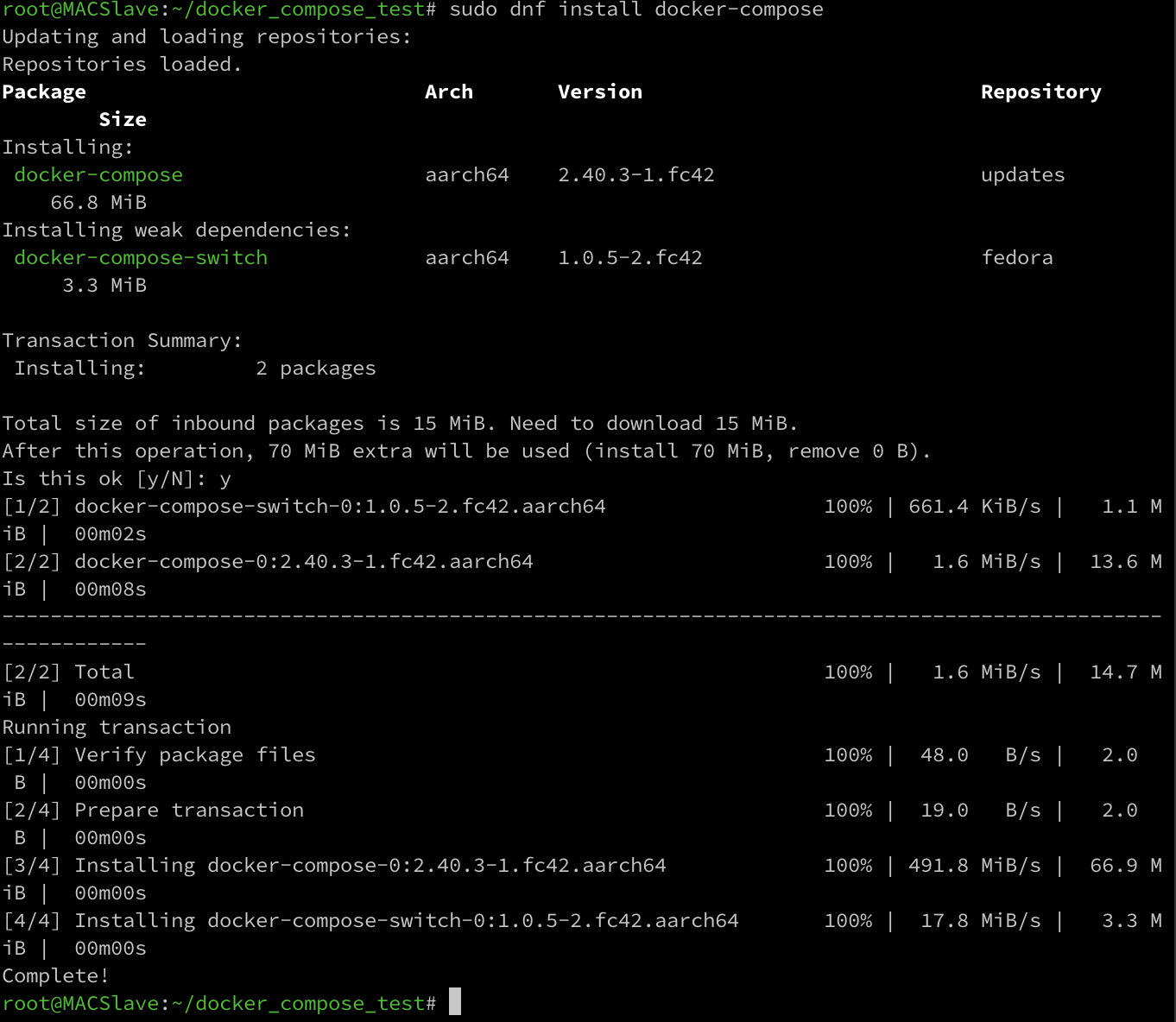
- Make sure docker-compose is installed:
-
Ensure dirs are made:
mkdir html(For our test file) -
docker-compose upin dir with thedocker-compose.ymlfile
Docker-Compose will pull all the images and dependencies that our services need:
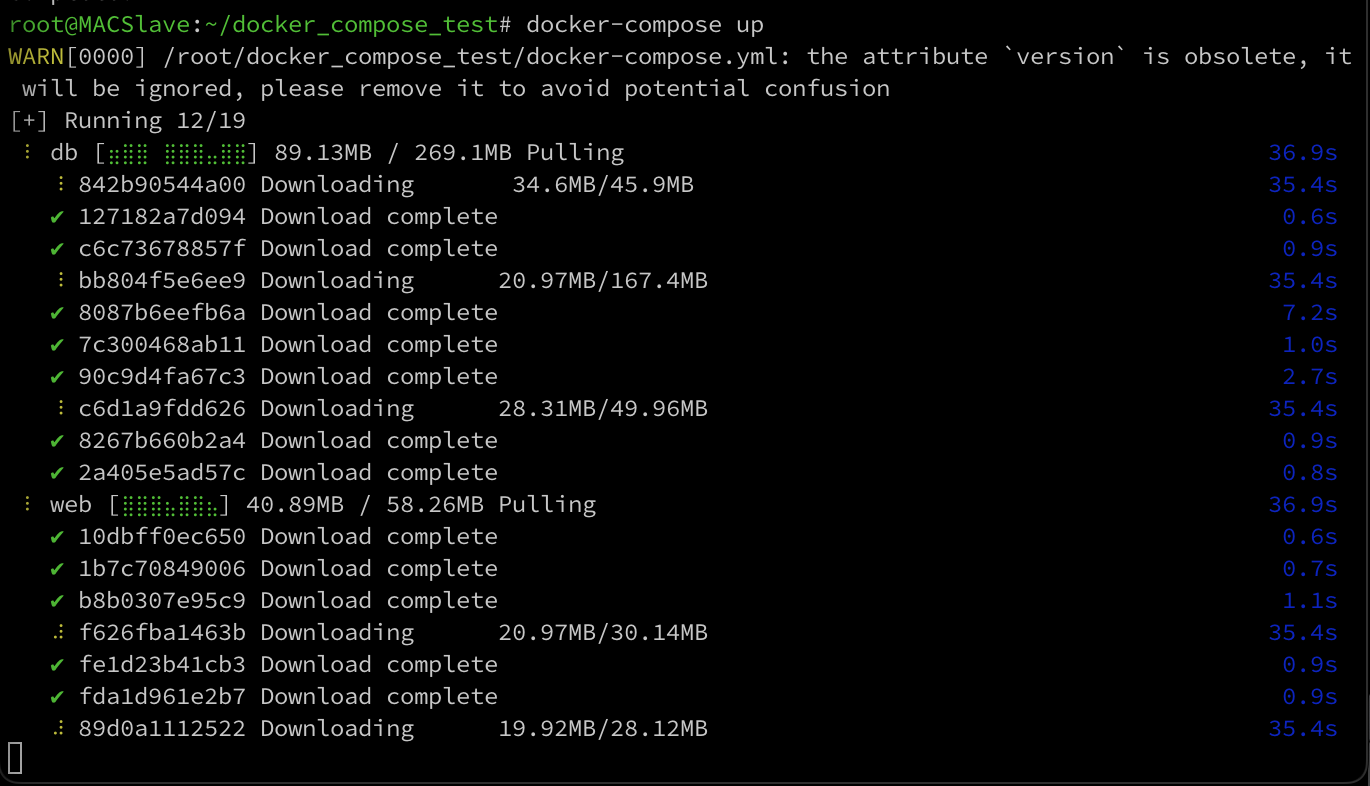
The running services will output logs.

Stopping and Cleaning
Complex applications can have many services with many images and dependencies. Cleaning up on the host machine is necessary.
To stop the docker-compose process, hit it with the old Ctrl-c which will hopefully gracefully end its child proceeses. Hitting Ctrl-c again will force kill the children:
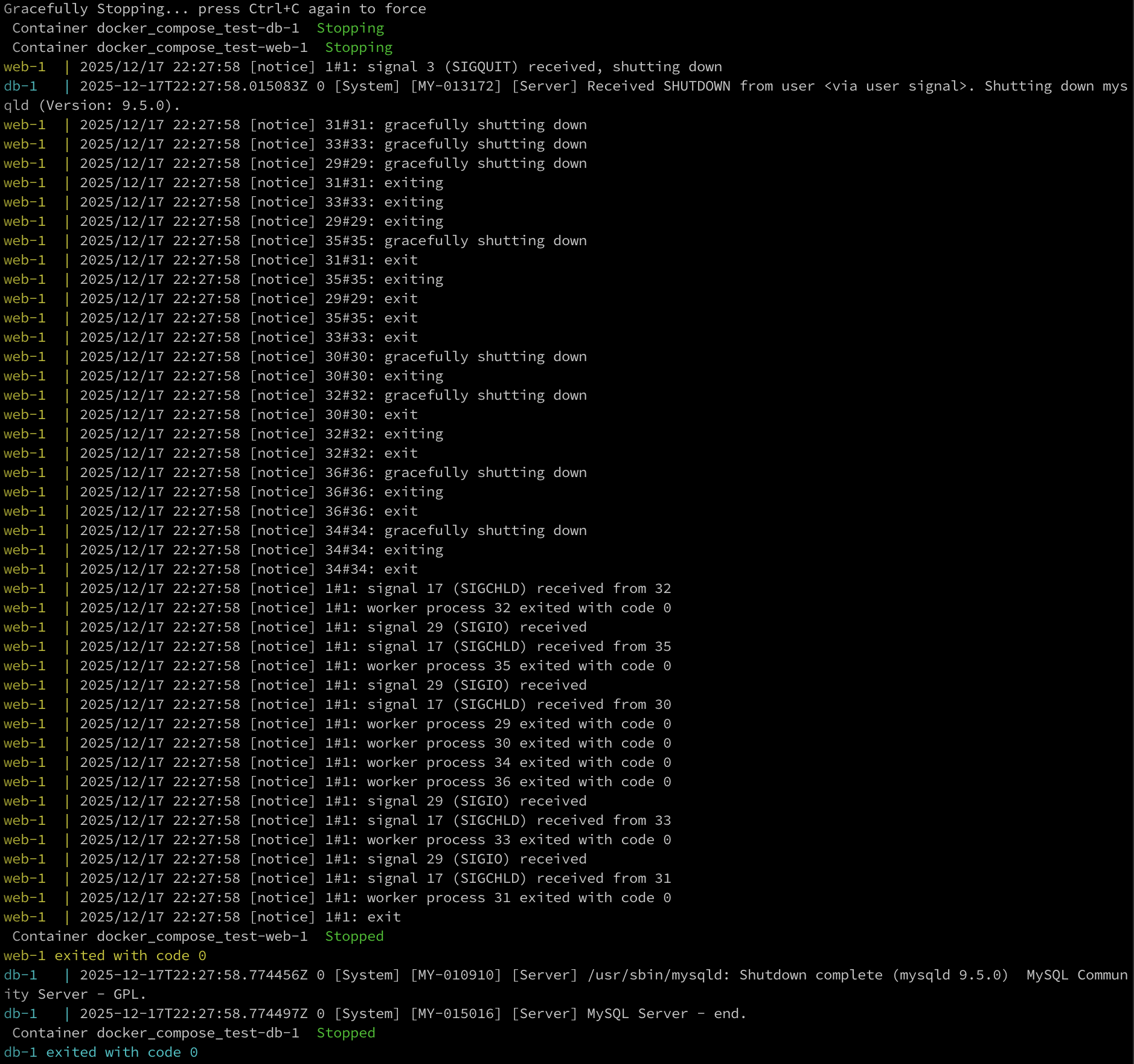
Cleaning up after the services is a little different. There are three popular options:
-
docker-compose stop: This will simply stop the services and defined networks. -
docker-compose down: This command stops and removes any containers along with any networks. -
docker-compose down -v: Same as number 2 but will remove persistent volumnes as well.
To remove images we can run docker rmi image_name or docker image prune. The second will remove any images not associated with a container.
To remove all exited containers: docker container prune.